IronBee Scenarios: Write the Test in Sentences, Let the Harness Run It
IronBee Scenarios are plain-language end-to-end tests. You write the flow you click through before every release as sentences, and a harness hands an agent one action at a time and keeps the evidence of each.

Every release, someone opens the app and clicks through the same flows by hand: sign in, add something to the cart, check the total, sign out. Hardly anyone turns that click-through into a test, because a scripted end-to-end test means selectors and waits that somebody has to keep alive after every redesign.
Scenarios are how IronBee automates that click-through. You write the flow once, in plain words, as rows like "Add the first product to the cart". An agent runs it against your environment in a real browser, one action at a time, and keeps a screenshot and a report for every action.
Putting an LLM agent in charge of a test raises an obvious question: what stops it from improvising? Most of this post is about that. The short version is that the agent never holds the whole run. It gets one action, answers with a structured outcome, and the harness decides what happens next. That keeps the run on its script: the agent can't skip a row, reorder the rows or end the run early. It can still misread a page, which is why every action keeps the evidence you need to check its answer.
What is a scenario in IronBee?
A scenario is a saved flow that IronBee runs against one of your project's environments. Each row is one instruction, written the way you'd tell a teammate. Rows sit in three sections, Setup, Main and Teardown, and a scenario is either Web or API, like the project it belongs to.
Here's the scenario this post uses throughout. It's close to the Sign in, add to cart and check the total template the console offers when you create one:
Checkout total matches the cart                                    Web

Setup
  Act       Sign in with @customer
Main
  Extract   Read the price of the first product      Save as firstPrice
  Act       Add the first product to the cart
  Wait      The cart badge shows 1                   Up to 60 s, every 10 s
  Act       Open the cart
  Assert    The cart total equals @firstPrice        Blocking
  Assert    No banner covers the Checkout button     Soft
Teardown
  Act       Empty the cart
  Act       Sign out
Nothing in it names a selector, a URL path or a test ID. @customer is a secret from the environment and @firstPrice is a value the Extract row saved. You type @ in the editor to pick either one.
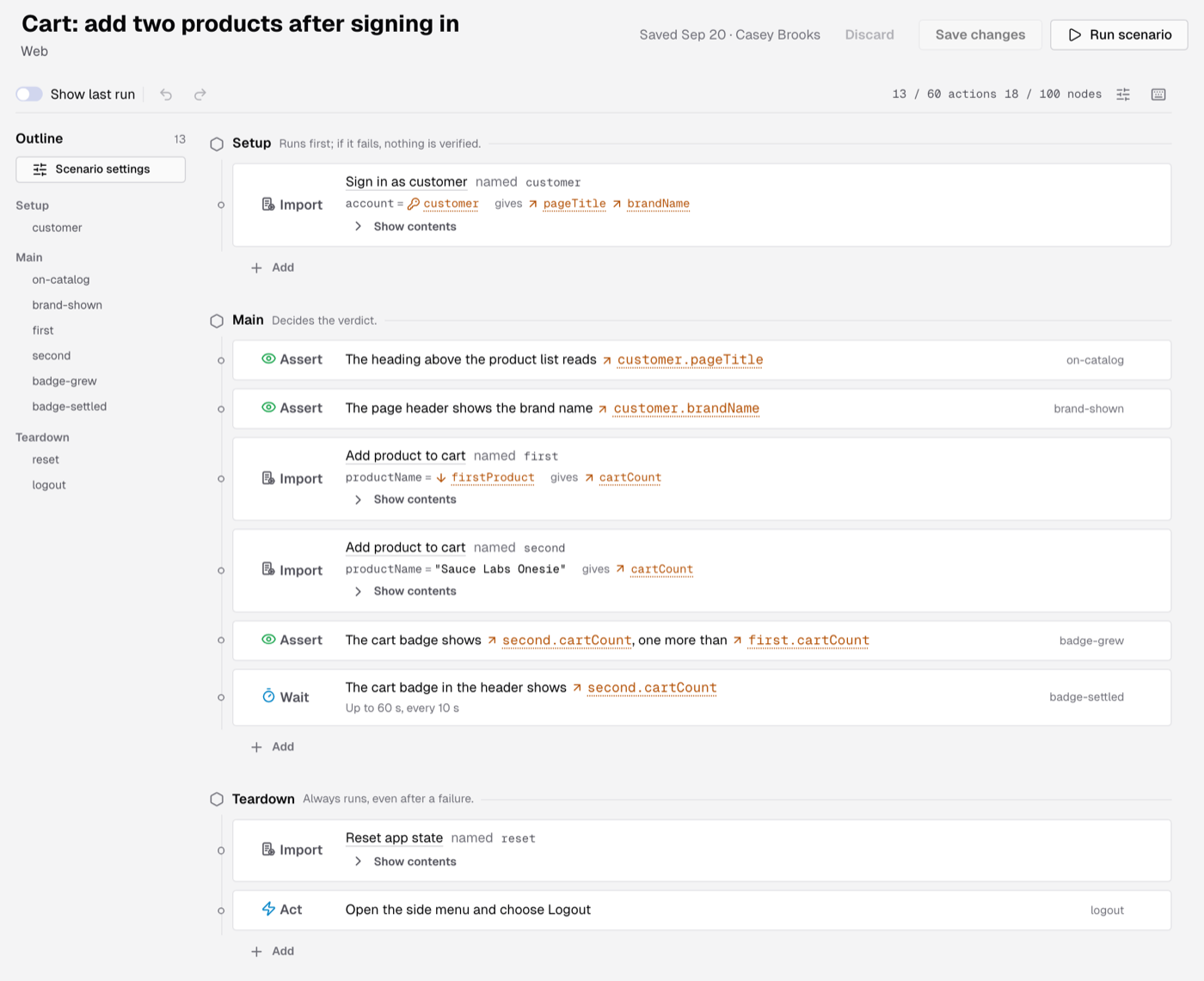
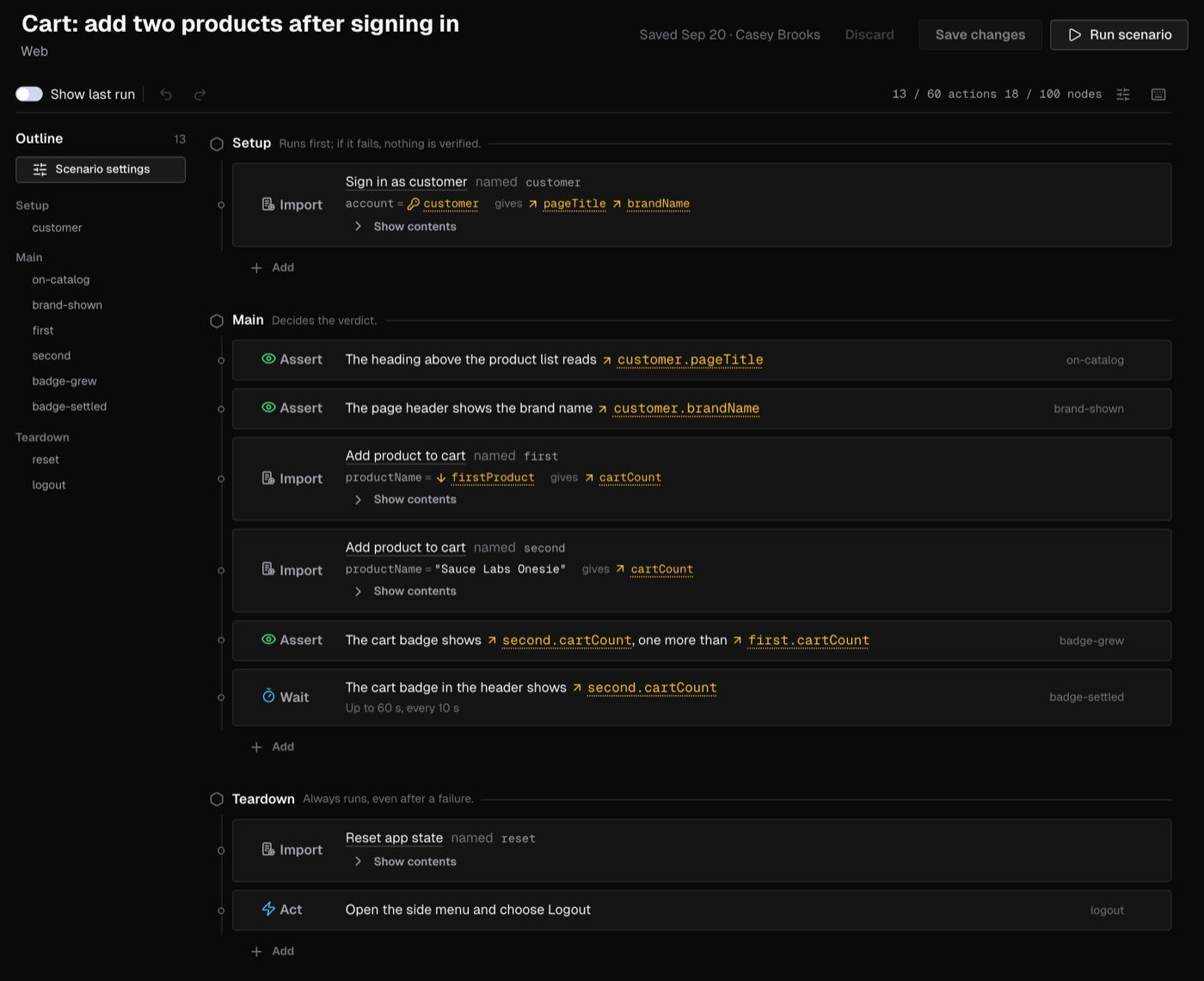
How a scenario run works: the harness owns the loop, the agent owns one action
When you click Run scenario, you pick an environment and fill in any inputs, and a preflight checks that the environment defines every secret and value the rows read.
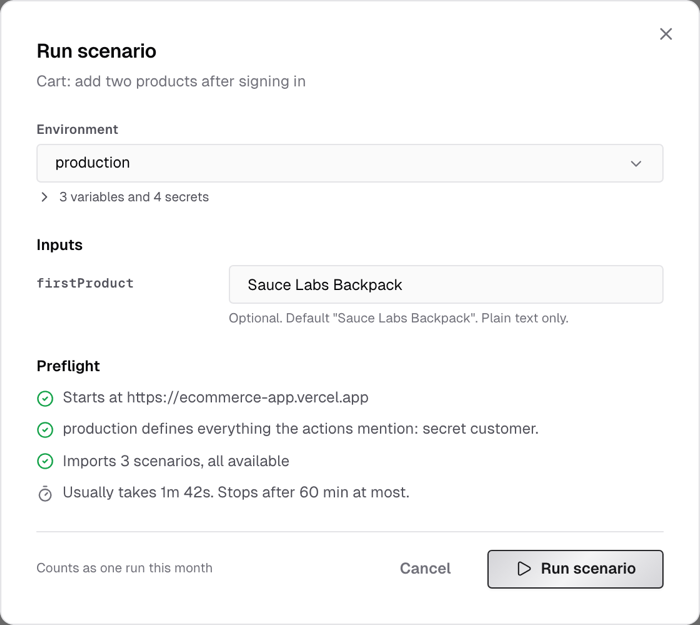
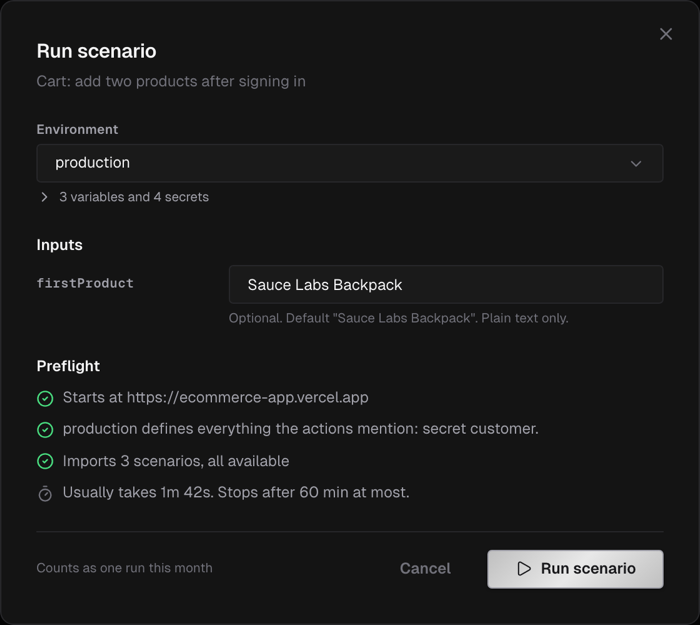
After that, the harness takes over:
The part I'd want an engineer to take away is where the control sits:
- Each action is its own query to the agent, with its own time budget and its own output schema. The comment at the top of our runner puts the rule in one line: nothing the agent says can skip, reorder or end the run.
- The browser session lives across actions. Cookies and sign-in state carry over, so the sign-in in Setup holds for Main, and the agent keeps what it learned in earlier actions.
- The run executes a frozen copy of the scenario, with its imports expanded when it starts. If you edit the scenario mid-run, the run doesn't change. Its Runs tab later shows whether each run used the current version or an older one.
- The harness takes the screenshots. After each action it captures the page itself through its own browser connection. The agent isn't asked to, so it can't forget.
Setup, Main and Teardown: why only Main decides the verdict
The three sections exist because "the test failed" can mean three different things, and only one of them is about the feature you're testing.
Setup runs first. If it fails, say the sign-in page doesn't load, the run ends as Setup failed, Main is skipped and nothing was verified. Reporting that as a broken checkout would send someone off to debug the cart.
Main decides the verdict. When a blocking assert fails, the run fails and the rest of Main is skipped. When a soft assert fails, the failure is recorded and the run goes on, ending as Soft fail if nothing blocking failed.
Teardown runs after Main whatever happened there, and after a failed Setup too, so the cart the run filled gets emptied. It never changes the verdict.
Pick a case below and watch the run. The panel on the right shows what the agent was handed and what it answered.
A run error is not a verdict
The last case in that figure is the one I'd point to if you asked why you can trust these results. When the agent can't carry out an action, because a tool errored or the browser refused something, it doesn't pick a pass or a fail. It answers unable, the harness records a Run error, the rest of Main is skipped and the run ends with no verdict.
That comes from a rule in our design for scenarios: a verification failure and a run error are different outcomes, and the result never gives them the same status. "The app did the wrong thing" is a verdict. "The run couldn't do its job" isn't one, and it shouldn't turn your check red for a reason that has nothing to do with your code.
Here's how the outcomes line up:
| Outcome | What it means | Verdict |
|---|---|---|
| Passed | Every action passed | pass |
| Failed | A blocking action failed; the band names it and gives the reason | fail |
| Soft fail | Every blocking assert passed, but a soft one failed | soft fail, which counts as failed outside IronBee |
| Setup failed | Setup didn't finish, so nothing was verified | none |
| Run error | An action couldn't run | none |
| Ran out of time | The run used its whole time budget | none |
Act, assert, extract and wait: four row kinds, four contracts
Every action returns a structured object, never free text that we'd have to parse. Each kind has its own small set of answers:
- Answers
doneblockedunable- Setting
- If it is blocked: don’t retry, or retry up to 3 times
- Answers
passedfailedunable- Setting
- If it fails: Blocking or Soft
- Answers
foundnot_foundunable- Setting
- Save as: firstPrice
- Answers
metnot_metunable- Setting
- Give up after 60 s, check every 10 s
A few of the rules behind those answers took longer to settle than the rest:
- An Assert reads, it doesn't fix. The agent is told not to change the app to make an expectation true. If the cart total is wrong, the assert fails; the agent doesn't go and remove the shipping fee.
- Retries are for Acts that are safe to repeat. An Act is retried only when it comes back
blocked, up to 3 times, and never after a run error. The default is no retry, because a blocked attempt can leave the app half-changed. - An Extract writes all of its names or none. If the row says
Save as firstPriceand the agent answers without it, that's a run error, and the rows after it don't read a half-written value. - The harness owns the clock on a Wait. Each poll is a short, read-only look at the page. Running out of time fails the Wait only if at least one poll saw the condition not hold. If no poll answered at all, nothing was observed, so it's a run error instead.
What a scenario run keeps as evidence
Every run lands on the same verification page as any other IronBee run: the outcome band, each action's status and screenshot, the agent's report and what it saw, the recording, the network requests, the traces and the logs, and every tool call filed under the action it belongs to.
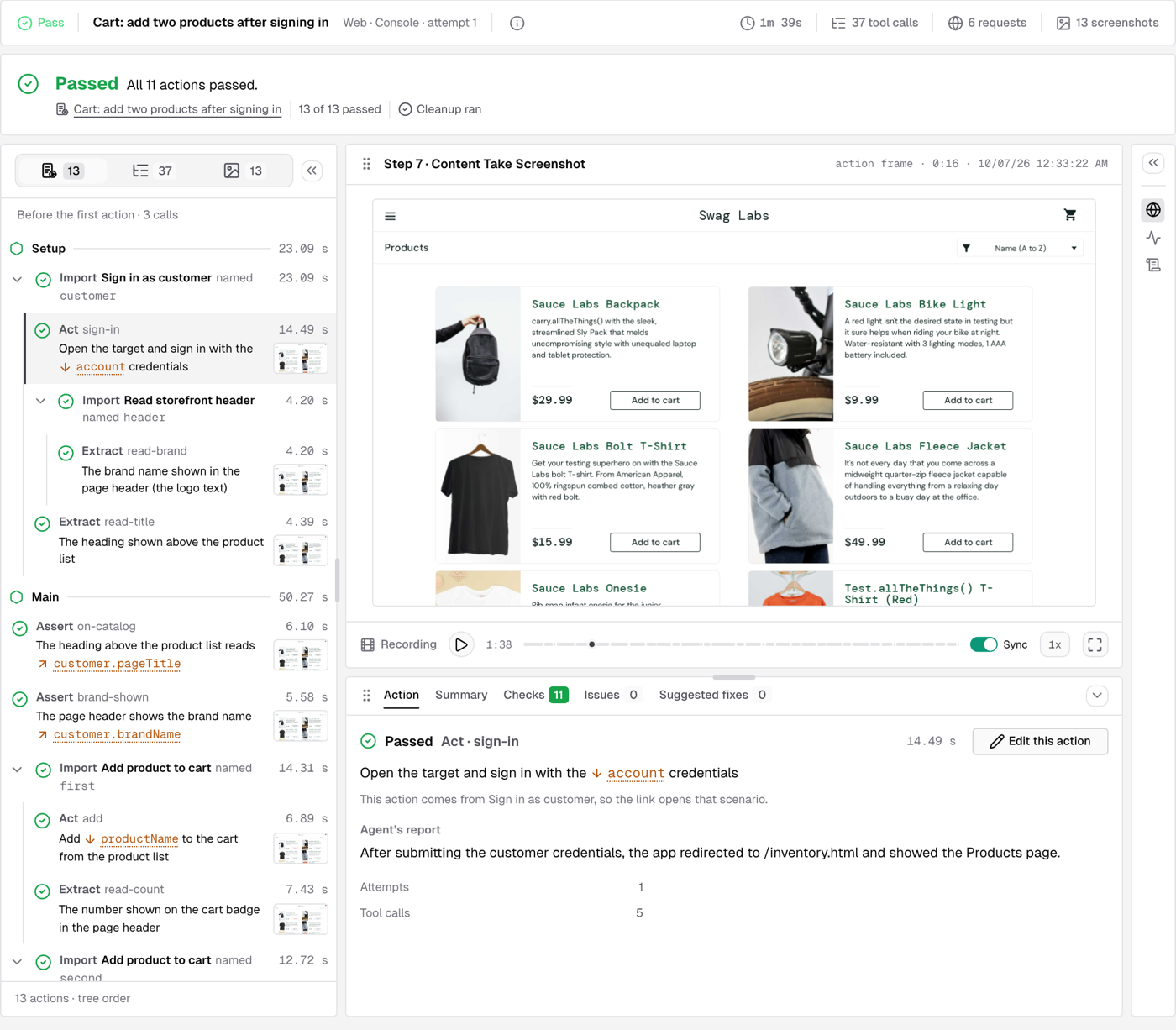
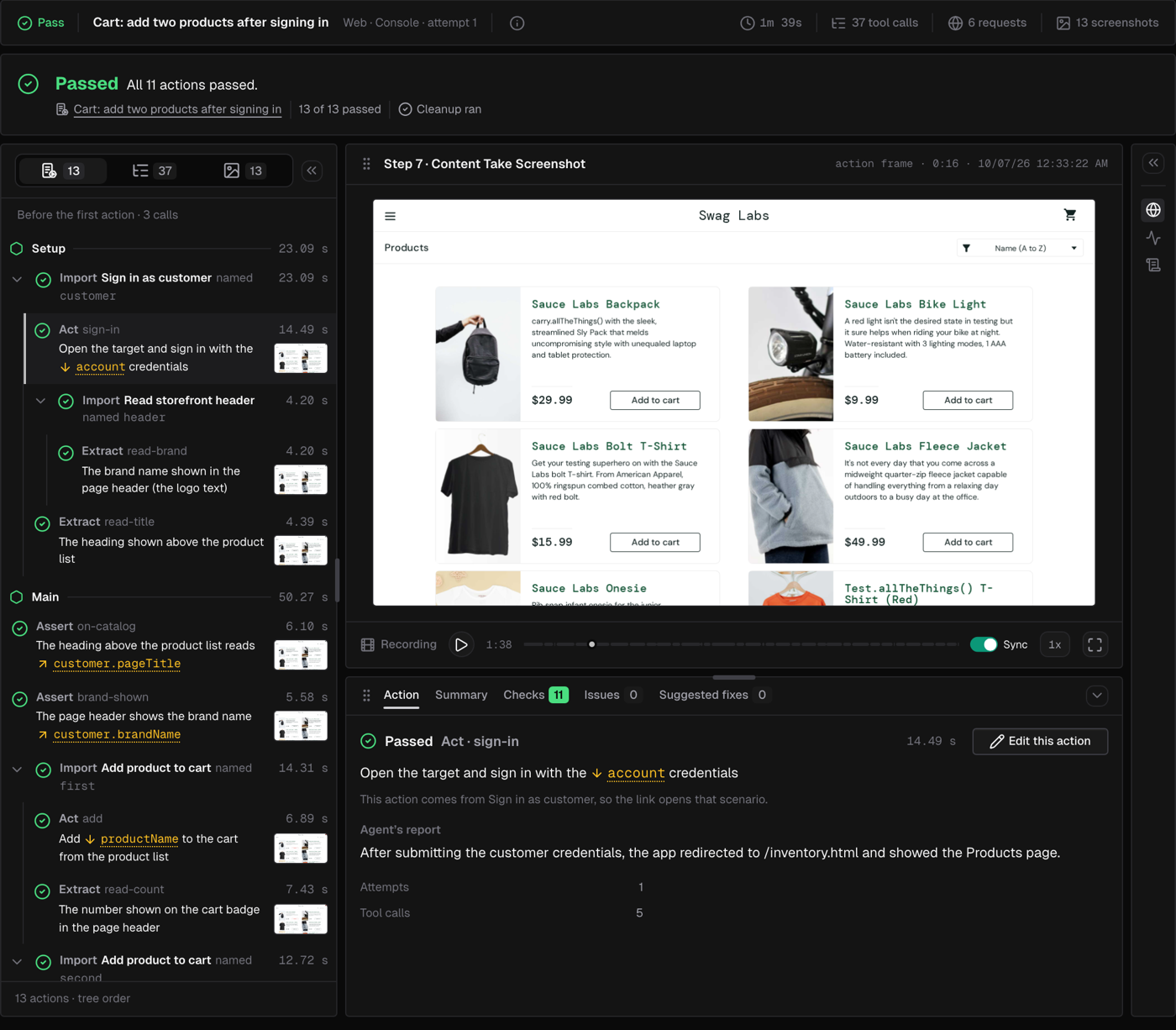
Edit this action opens the editor on the row that failed, with the run shown on the scenario, so the distance between "this broke" and "this is the row to fix" is one click.
Reusable parts: imports, inputs and outputs
Sign-in is usually the first thing a second scenario needs, and copying it into each one is how it drifts. Move it into its own scenario and import it instead.
An import runs another scenario's Main inside the current one. Values go in only through its inputs and come back only through its outputs, which you read by the name you gave the import, such as @customer.pageTitle. Try the three kinds of change:
- Input
account← @customer secret- Outputs
pageTitlebrandName
An import runs only its Main. Its own Setup and Teardown don’t.
- Checkout total matches the cartImports it in Setup
- Wishlist survives sign-outImports it in Setup
- Order history lists the orderImports it in Main · reads @customer.pageTitle
A save that would break an importing scenario is refused, and the editor names the scenario it would break. Removing an output that another scenario reads is the common case. You also can't delete a scenario while another one imports it.
The trade-offs we made, and what we didn't build
Every action is interpreted live, on every run. There's no recorded script underneath that replays last time's clicks. That's why renaming a CSS class doesn't break a scenario. It's also why a scenario run is slower and costs more per run than a Playwright test replaying known selectors: each run counts as one verification run. If a flow is stable and you already have a fast scripted test for it, keep the test.
An agent can misread a page. The harness controls which action runs and when, not how the agent reads the page. That's why every action keeps what the agent saw and its report next to the screenshot, and why a surprising verdict is something you can check instead of argue about.
There's no shell. A scenario has no command action. Seeding and resetting data are written as Act rows, through the UI or through the app's API, which a web scenario can call too.
A scenario is a straight line. There are no conditions, loops or data-driven rows, and a step only a human can do, such as solving a captcha, can't be written as an action.
Teardown runs when the run ends on its own. If a run is stopped, or the browser tools are lost, cleanup doesn't run, and the outcome band says Cleanup didn't run so you know the app may still hold data the run created.
Write your first scenario
In the IronBee console, open a project's Scenarios tab, click New scenario and start from the Sign in, add to cart and check the total template. Change the rows to match your app, click Run scenario, and open the run to read each action's report next to its screenshot.
The docs cover each part in more depth: Scenarios, Write a scenario, Run a scenario and Inputs, references and imports.
Frequently asked questions about IronBee scenarios
Are IronBee scenarios end-to-end tests?
Yes. A web scenario drives your deployed app in a real browser, from sign-in to the result you check. The difference from a scripted end-to-end test is that each action is a sentence the agent carries out live, not a script of selectors.
Do scenarios only work for web apps?
No. A scenario is either Web or API, like the project it belongs to. A web scenario drives your app in a real browser, the way a user would. An API scenario calls your deployment over HTTP and checks the responses, so a backend with no UI gets the same plain-language rows and the same Setup, Main and Teardown. Both kinds run from the console.
Do I need to write code or selectors?
No. Rows are plain-language instructions of up to 4,000 characters. You reference inputs, saved values, variables, secrets and environment properties by typing @.
Does the AI agent see my passwords?
No. A secret goes into an action as a reference, and its value is never written into the agent's instructions. IronBee swaps the value in only when the agent types the reference into a matching field on one of the secret's bound hosts. Screenshots and recordings can still show what your app renders, so use test accounts.
What's the difference between a blocking and a soft assert?
A failed blocking assert fails the run and skips the rest of Main. A failed soft assert is recorded and the run goes on. A run whose only failures are soft ends as Soft fail, which counts as failed outside IronBee.
What happens to test data when a run fails?
Teardown still runs, after a failed Main and after a failed Setup, so rows like "Empty the cart" clean up what the run created. If a run is stopped or loses its browser tools, the outcome band says Cleanup didn't run.
Back to the click-through at the top of this post. Write it as a scenario once, and the next time someone asks whether checkout still works before a release, the answer is a run with a screenshot and a report for every action, not another round of clicking.
Scenarios are in the IronBee console. If a run's result surprises you in a way the evidence doesn't explain, tell us: those are the cases we most want to see.